Use the trackers in your torrent client
More trackers means more peers and faster downloads, especially for older or less popular torrents. The best way is to give your client this site's list as a link, so it stays up to date by itself.
Each client below has screenshots with the settings marked ①②③, matching the steps. Tap one to see it full size.
Your list (working trackers, fast from anywhere):
https://newtrackon.co.nz/api/clean
For a different region or other options, see the List page.
qBittorrent
- Open Tools → Preferences (Alt+O). Older versions call it Options; on a Mac it's qBittorrent → Preferences.
- Pick the BitTorrent page.
- Scroll down, tick Automatically append trackers from URL to new downloads, paste your list link into URL, and click OK. New torrents get the trackers from then on, and the list stays up to date.
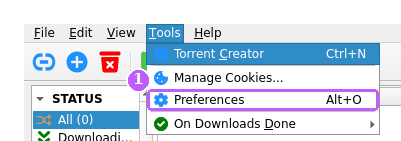
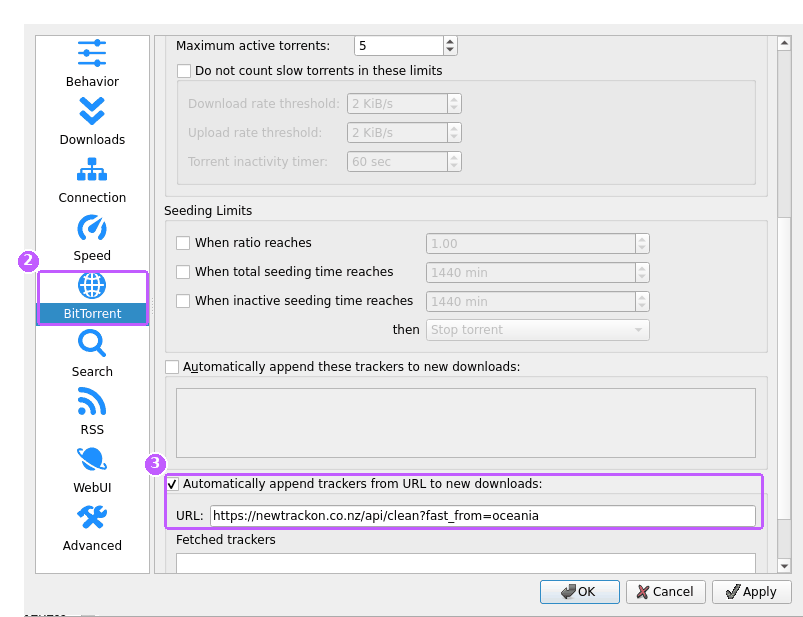
No URL option in your version? Tick Automatically append these trackers to new downloads (just above it) instead and paste the list itself (open the link, copy everything). That copy won't update, so redo it now and then. Torrents added from the command line while qBittorrent isn't running don't get the URL trackers.
Transmission (4.0 or later)
- Open Edit → Preferences.
- Pick the Network tab.
- Open your list link, copy everything, paste it into Default Public Trackers, and click Close. Transmission adds them to every public torrent.
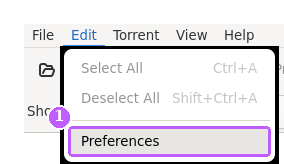
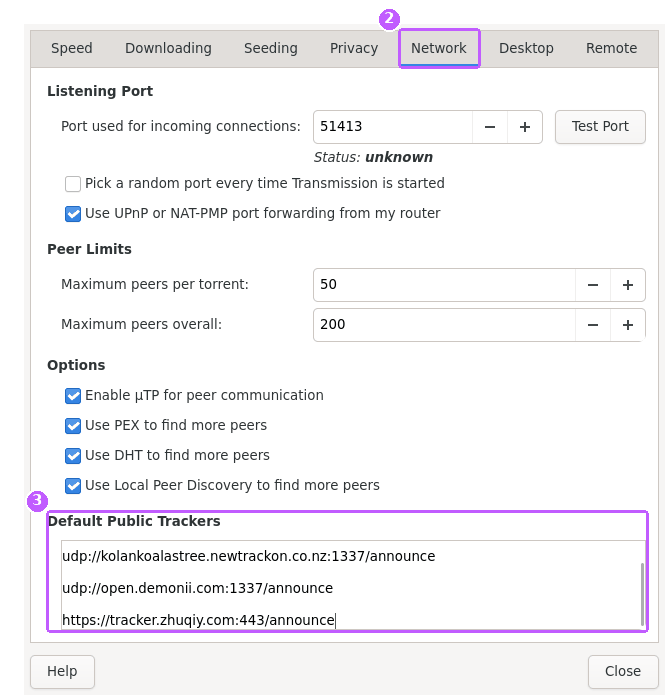
A pasted list doesn't update by itself: paste a fresh copy now and then. Running the daemon or the
command-line version? The same setting is "default-trackers" in settings.json (stop Transmission first,
and separate the trackers with \n\n typed inside the quotes).
Deluge
Deluge can't do it on its own, but the Default Trackers plugin can: it adds trackers to new public torrents (never to private ones) and reloads them from a link.
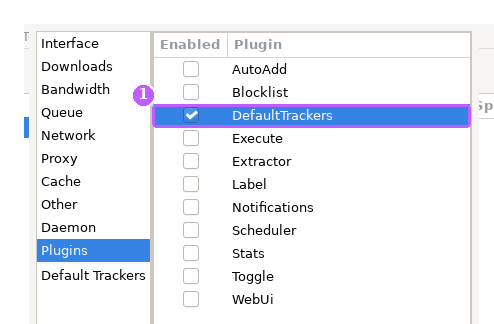
- Install the plugin: Edit → Preferences → Plugins → Install (pick the file built for your Deluge's Python version), then tick DefaultTrackers.
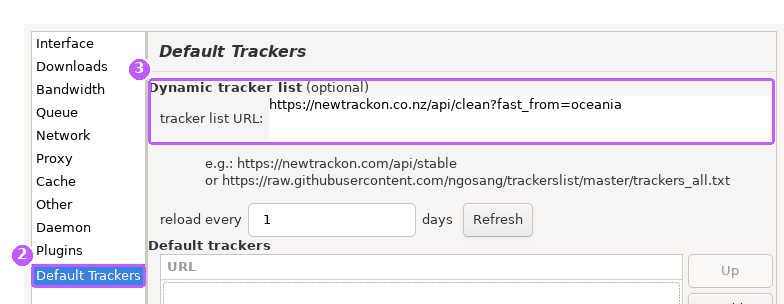
- A Default Trackers page appears: pick it.
- Paste your list link into tracker list URL (it reloads every day) and click OK.
Any other client, or one download
Most clients let you add trackers to a torrent in its properties or Trackers tab: paste the list there. Or use Tools: paste a magnet link or open a .torrent file, and get it back with the best trackers added.
Private trackers
Don't add public trackers to torrents from a private tracker: it's against their rules and can get your account banned. qBittorrent, Transmission and the Deluge plugin all leave private torrents alone, and so do the Tools here.